Higgsfield Genjutsu: motion transfer and object swap explained
Genjutsu takes the movement from a video you already have and applies it to a new character, product or location — or replaces one element of the clip and leaves the rest untouched. Here is how it works and how to get clean results.
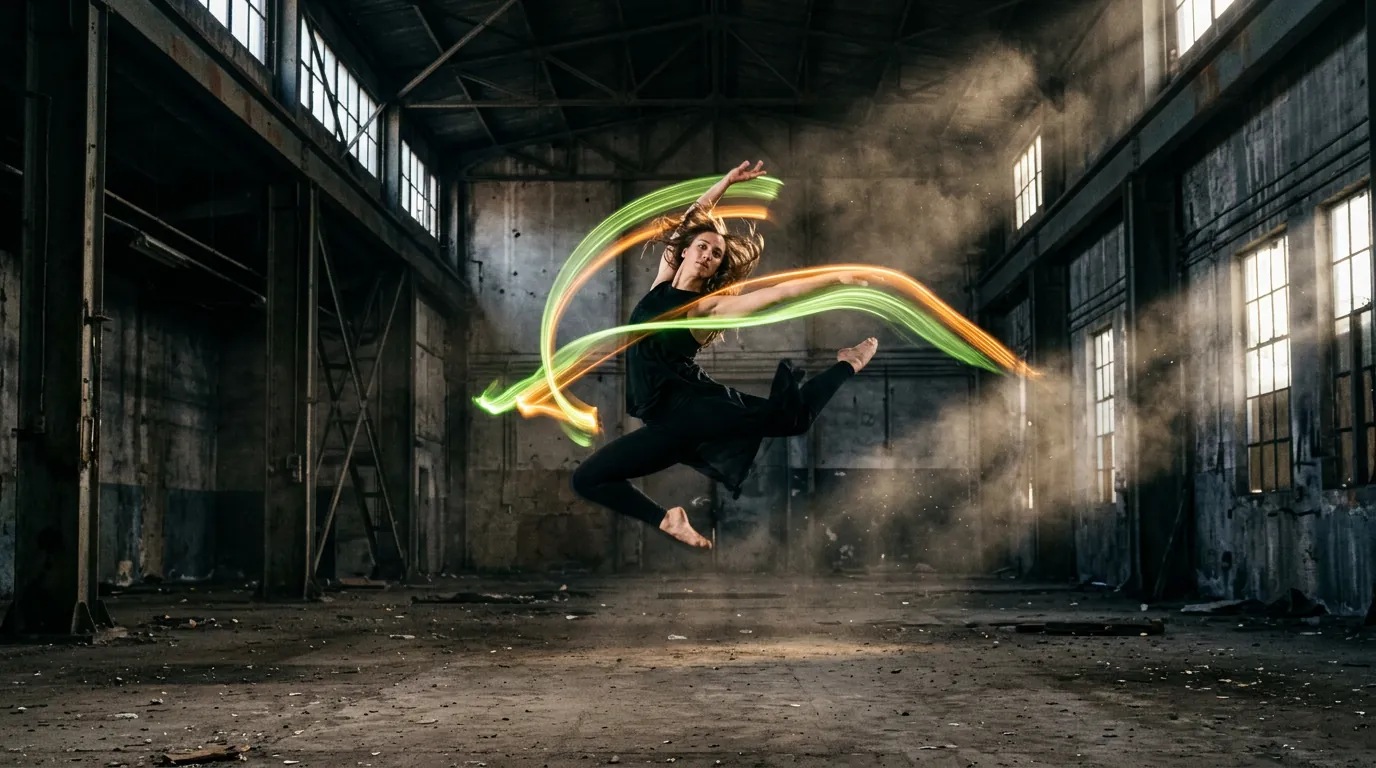
- Motion transfer: a reference video drives the motion; your reference images define who or what moves.
- Object replacement: swap a specific object in a source video using reference images.
- Genjutsu Lite is a faster, cheaper variant (up to 15 seconds in our October 2026 check).
What Genjutsu does
Text and image prompts struggle with precise choreography: a specific dance, a gesture, a camera path. Genjutsu solves this by using a real video as the motion source. On its homepage, Higgsfield describes it as recasting the motion of a video with your own characters, locations or products, or swapping specific elements while leaving everything else unchanged. Community presets let you start from popular motions.
Two modes
Motion transfer
You provide a reference video (the movement) and one or more reference images (the subject). The output shows your subject performing the movement. Typical uses: dance trends with a mascot, a product moving through a dramatic hero shot, a character reenacting your own acting performance.
Object replacement
You provide a source video and a reference image of a new object. Genjutsu replaces the chosen element — for example a bottle, a car or a piece of clothing — while keeping the scene, the lighting and the camera motion.
Step by step: motion transfer
- Pick a clean reference videoOne subject, fully visible, steady camera, good light, no heavy cuts. Short is better.
- Prepare the subject imageA clear, full-body image of your character in a similar pose and framing to the video’s first frame.
- Match the framingIf the video is a full-body shot, use a full-body image. Mismatched framing is the first cause of distortions.
- Choose Genjutsu or Genjutsu LiteUse Lite for quick tests and short clips, the full version for final quality.
- Generate and reviewWatch hands, feet and fast moves closely; retry with a simpler segment if needed.
Tips for clean results
- Choose videos with moderate movement; acrobatics and spins are hardest.
- Keep the subject’s silhouette similar (a long coat on a short-sleeve dancer may glitch).
- Use plain backgrounds in reference images so the model focuses on the subject.
- For object swaps, give a sharp reference of the new object from a similar angle.
Rights and ethics
Frequently asked questions
What is the difference between Genjutsu and Genjutsu Lite?
Lite is faster and cheaper, designed for quick, shorter generations. The full version targets higher quality. Exact limits are shown in the app.
Can I use a TikTok trend as the reference?
Only if you have the right to use that video. Recording your own version of the movement is the safest option.
Is Genjutsu the same as a face swap?
No. A face swap changes a face. Genjutsu can recast the whole subject, or replace an object, while keeping the original motion.
Facts checked: October 29, 2026. Features, models and plans change often — always confirm on the official site.
Keep learning
What is Higgsfield AI? A clear introduction for 2026
Higgsfield AI explained in plain language: what the platform does, its main studios and models, who it is for, how credits work and how to get started.
Read guide →
Higgsfield for beginners: your first hour, step by step
A step-by-step Higgsfield tutorial for beginners: create your account, understand the interface and credits, generate your first image and turn it into a video.
Read guide →
How to plan and make your first AI video with Higgsfield
A practical workflow to make a short AI video with Higgsfield: write a one-line idea, build a shot list, create key frames, animate them, add sound and edit.
Read guide →